Guide · My designs
The Editor — fix it by chat
For anyone whose finished piece is nearly right and needs one thing changed.
The film was shot on an earlier frame of the app; the steps below are the screen as it is today.
Step by step
- 1
Open a design from the My designs
Open My designs from the menu down the left (on a phone, the ☰ button top-left opens it). Press a tile and it opens at the side with everything you can do to it; press Open and a design opens in the Editor, big, with its fix box under it. (A finished piece on any maker also offers “Fix it in the Editor”.)
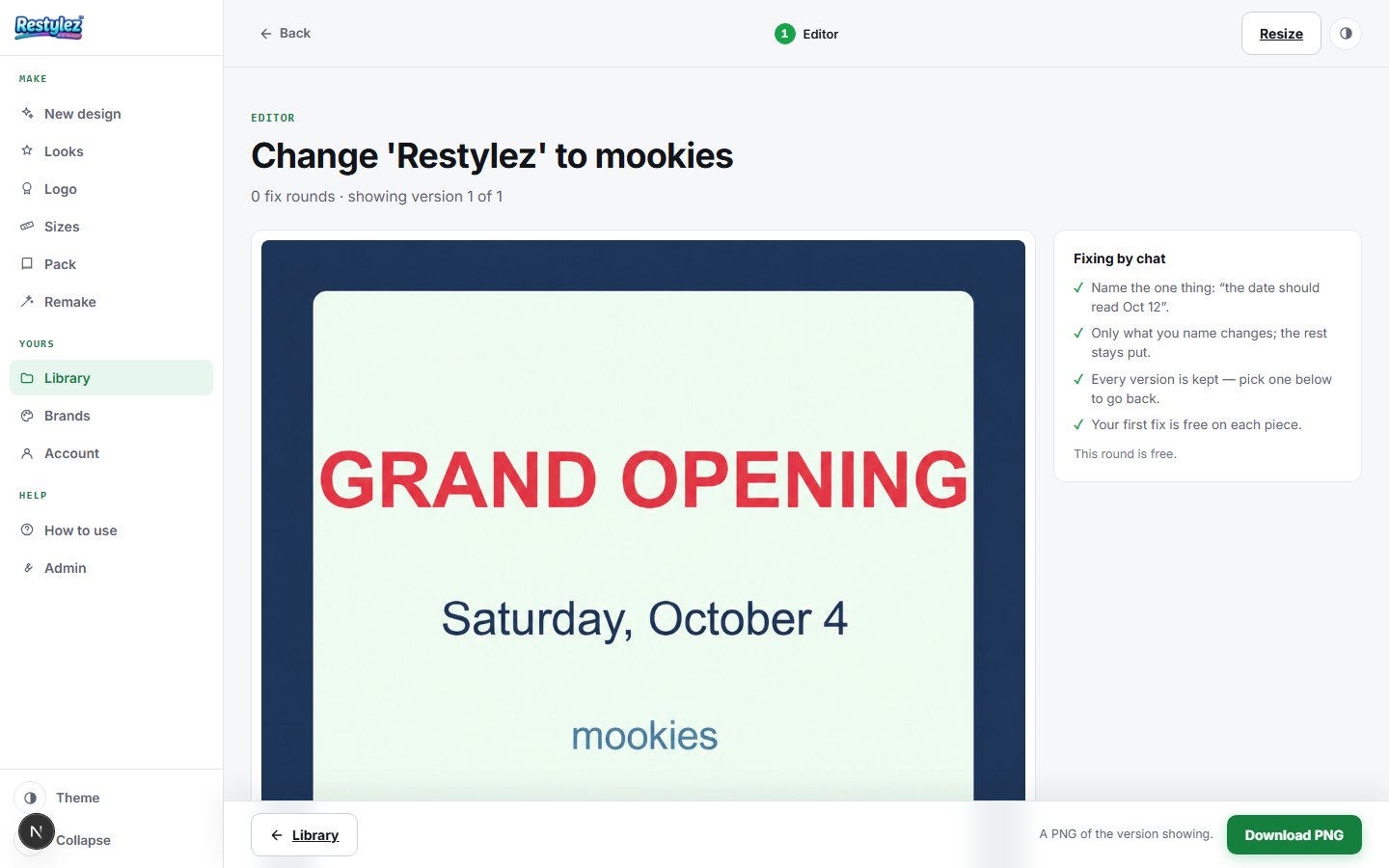
The whole screen · click to open full size - 2
Look it over
The design fills the page. The line above it tells you how many fix rounds it has had and which version you’re looking at; every saved size sits under it with its own Download PNG and, for print sizes, Download print PDF.
- 3
Tell it what’s wrong
Type it in the “Fix something” box, or press one of the ready-made lines for common fixes: make the headline bigger, fix the spelling, move the photo, put the original logo back. Only what you name changes — nothing else moves. The price of the round is on the button.
- 4
Press the button
It takes about a minute. The box reads “Fixing…” while it works, and the new version replaces the old one on the page when it lands.
- 5
Go back to any version
Every round is kept as a small thumbnail under the design. Click one to see it; press “Revert to this version” to make it the one the Library shows. Download PNG in the bar saves whichever version is showing.
If something goes wrong
The messages the page can show, and what to do.
- “We could not find that design”
- The link points at a design your account does not have — it may have been deleted, or made before you signed in. Go to the My designs and press Open on the one you want.
- “That fix failed — say it a different way and try again.”
- The instruction was too vague. Say what to change and how: “change 6AM to 5:30AM in the date line”.
- “We stopped waiting for that fix. If it finished, it is in your Library.”
- The round took longer than we wait. Open the piece from the My designs again — if the redraw landed, it is the newest version; if not, nothing was charged.
- “Could not reach the maker — try again.”
- Your connection dropped for a moment. Check you’re online and press the button again. A job that fails is never charged.
- “You’re out of credits. Add some to keep going.”
- Your balance can’t cover this piece. Add credits on the Account page — your work carries on from where you left off. Nothing was charged.
Other guides