Guide · Caricature
Caricature — a cartoon of you that still looks like you
For anyone who wants a fun picture of themselves — a profile picture, a team page, a gift, a card.
Step by step
- 1
Step 1 · Who is in it
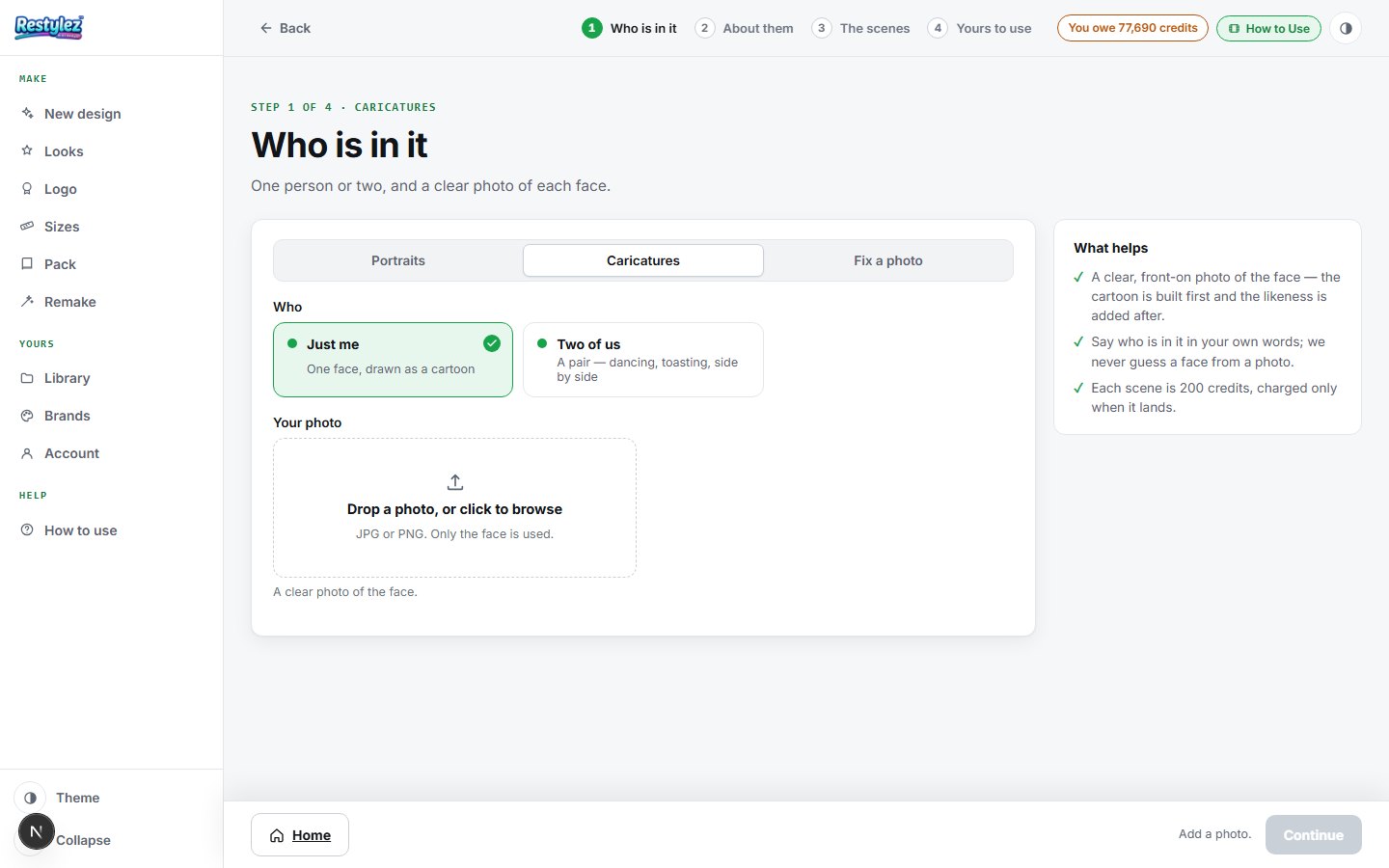
Caricature is the “Caricatures” mode of the photo maker (/caricature opens it, and the launcher’s Photo tile has an “Open Caricature” button). “Just me” draws one person; “Two of us” draws a couple together in the same picture — dancing, toasting, back to back. Picking two adds a second photo box. Drop a photo in, or click to browse: a clear picture of the face works best, looking at the camera, in good light, nothing covering the face. It does not need to be full length — only the face is taken from it.
The whole screen · click to open full size - 2
Step 2 · About them
One short line — “a man in his fifties”, “a woman in her twenties” — and optionally what they are wearing, like “a navy suit and red tie”. This is not us being nosy: the drawing is built before your photo is used, so it needs to know roughly who it is drawing. Your words, not our guess. Naming the clothing colors is worth doing, because it is what keeps them from washing out to gray.
- 3
Step 3 · The scenes
A grid of poses — standing, waving, arms folded, mid-jump, and for two people ballroom, swing, a toast, a handshake, back to back. Each is a pose we know draws well, which is why you pick one rather than describe one. The pills above narrow the list to Everyday, Celebration, Work or Fun. Take as many as you want; each is priced separately and the button adds them up.
- 4
Step 4 · Yours to use, then draw
Tick that the photos are yours to use, and press the button — it shows exactly what you will pay before you press it. Each picture is drawn twice over: once to get the cartoon style right, then again to put your real face into it. All the scenes are drawn two at a time, and each pair is saved the moment it lands.
- 5
Download them, or draw them again
Each finished picture has its own Download button, and everything saves to your My designs automatically. “Draw these again, differently” redraws the same scenes with different stances and expressions — it never returns what you already saw. Anything that did not come through is named, and was not charged; the button offers to draw just those again.
If something goes wrong
The messages the page can show, and what to do.
- “Add a photo first.”
- Step 1 has no photo in it yet. Drop one on the box or click it to browse.
- “Say who is in it — a line like “a man in his fifties” is plenty.”
- The “About them” box is empty. One short line is all it needs, and it is what the drawing is built from before your photo is used.
- “Pick at least one scene.”
- Nothing is ticked on the scenes step. Click any card to take it; click again to untake it.
- “No scenes in that group for two people — try another.”
- Not an error. The pill you pressed has no couple poses; press Everyday or Celebration, or “Any”.
- “Didn’t come through: …”
- That scene hit a snag while drawing. It was not charged — the button now offers to draw the ones that failed again.
- “None of them came through — nothing was charged.”
- The whole run failed, usually a busy image service. Wait a minute and press the button again.
- “Could not reach the maker — try again.”
- Your connection dropped for a moment. Check you’re online and press the button again. A job that fails is never charged.
- “You’re out of credits. Add some to keep going.”
- Your balance can’t cover this piece. Add credits on the Account page — your work carries on from where you left off. Nothing was charged.
Other guides