Guide · PowerPoint
PowerPoint — change the words, keep it editable
For anyone with a finished PowerPoint that needs new names, dates, numbers or wording.
The film was shot on an earlier frame of the app; the steps below are the screens as they are today.
Step by step
- 1
Start at PowerPoint
PowerPoint answers at /powerpoint — from the launcher’s “Making a presentation instead?” line, or by its address. It asks one question — do you have a PowerPoint you want to keep editable? If yes, “PowerPoint — edit your own” hands back a real .pptx with your design untouched, and Pack is for a big bought template. If no, Slide deck draws a new deck as pictures in any look. Press the first one.
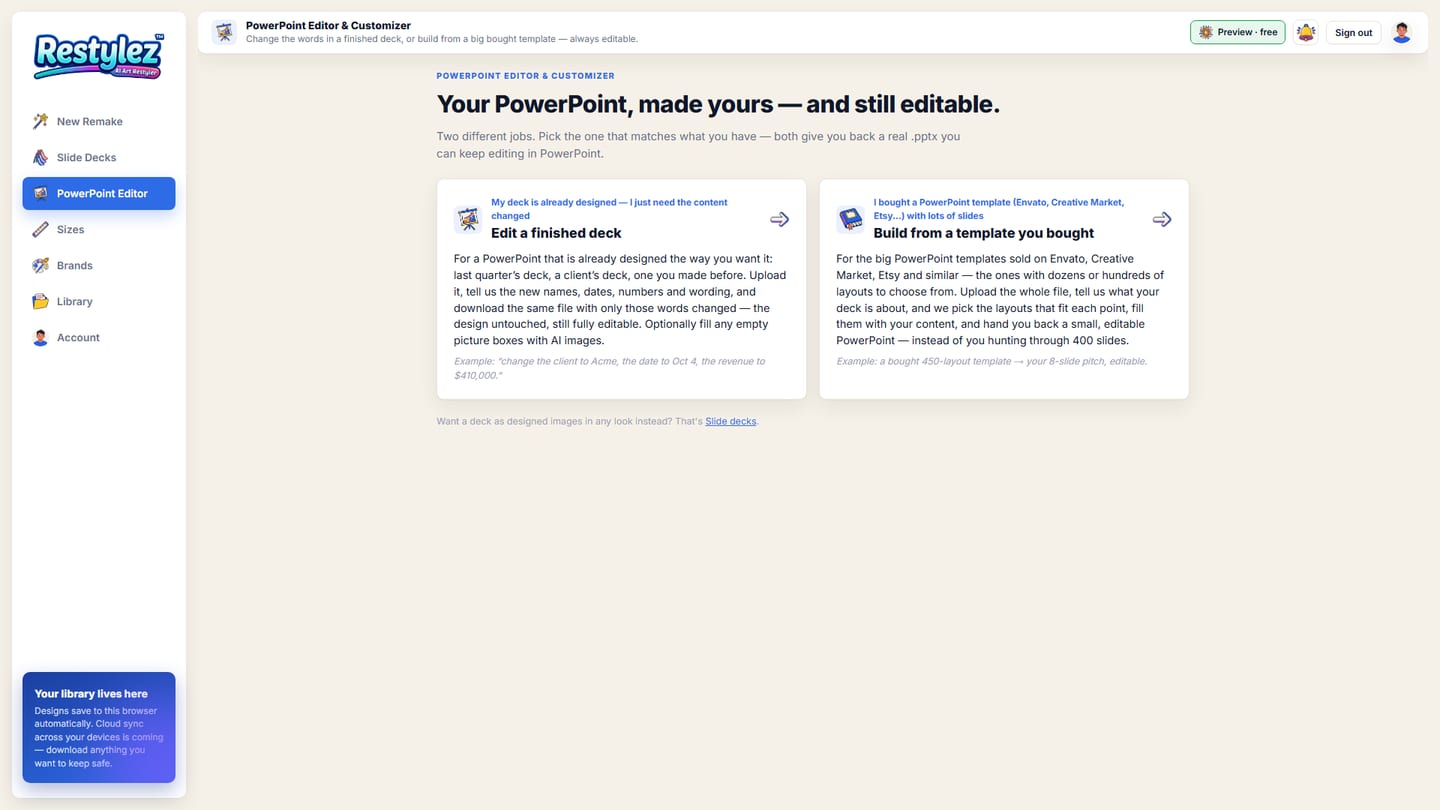
The whole screen · click to open full size - 2
Step 1 · Your deck
Drag your PowerPoint onto “Drop a .pptx here” or click to browse. The file is read in your browser — nothing is uploaded yet. Only .pptx works; an old .ppt must be saved as .pptx first. Tick “This PowerPoint is mine to use — I made it or own it” (required) and press “Open the deck”.
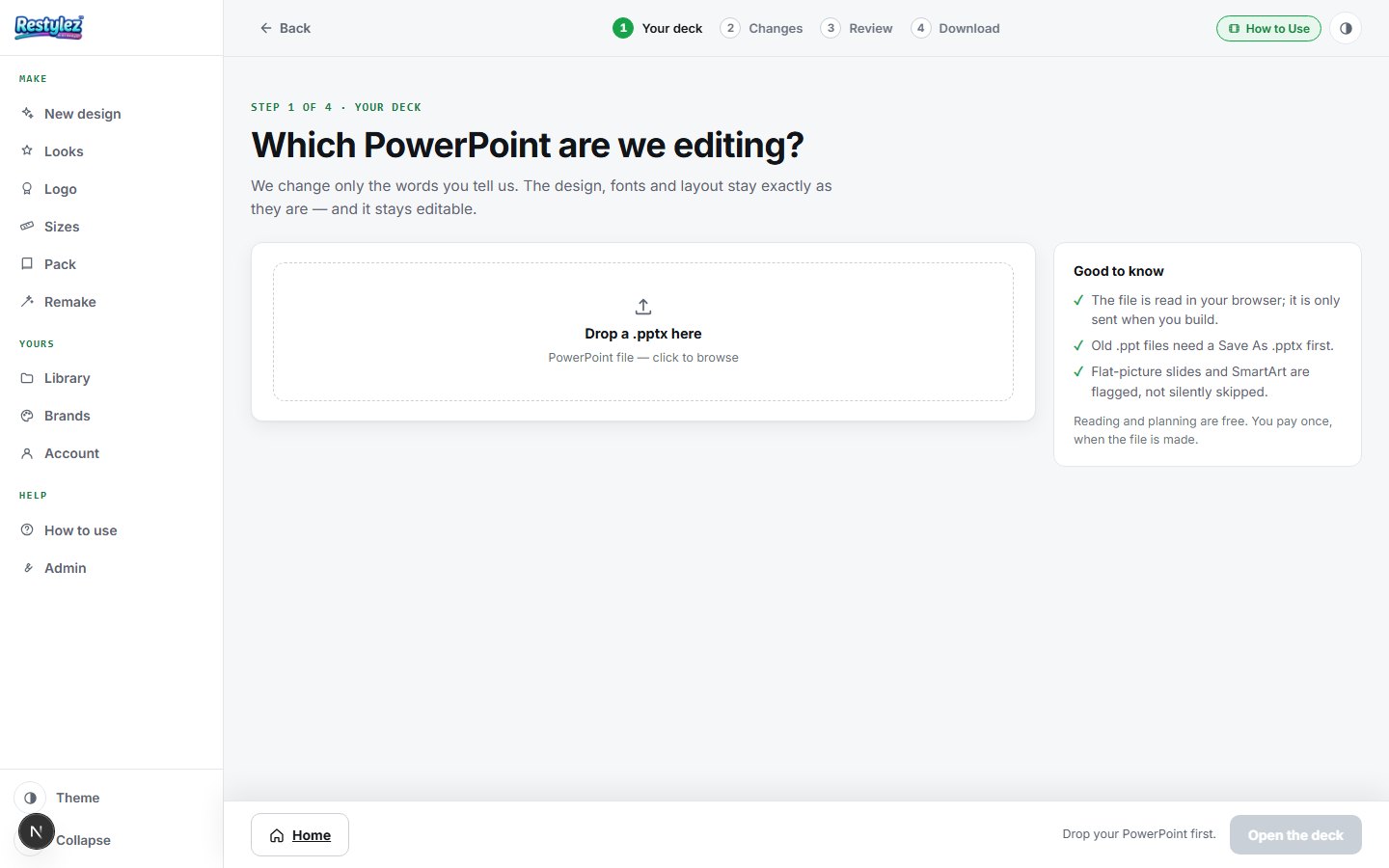
The whole screen · click to open full size - 3
Step 2 · Changes
The page says how many text boxes it found on how many slides. Type the changes in plain words (“change the client name to Acme Corp and the date to Oct 4”) and press “Review the changes”. Or press “Just open the text” to see every text box and edit by hand — “Show all text boxes” has a search for finding one by part of its text.
- 4
Step 3 · Review
Every changed box, before and after, on a picture of its slide — edit any of them. Tick “Also fill picture boxes with AI images that match each slide” if you want that. The price, in credits, is on the download button before you press it.
- 5
Step 4 · Download
Your PowerPoint is downloaded: the same file with your words in, still editable in PowerPoint, Keynote or Google Slides. “Edit another PowerPoint” starts again.
If something goes wrong
The messages the page can show, and what to do.
- “Drop your PowerPoint first.”
- Step 1 has no file in it yet. Drag the .pptx onto the box or click it to browse.
- “Tick “this PowerPoint is mine” to continue.”
- The ownership box isn’t ticked. Tick it, then press the button again.
- “Upload a PowerPoint (.pptx). Old .ppt files won’t work — open it and Save As .pptx.”
- Open the file in PowerPoint, choose Save As, pick “PowerPoint Presentation (.pptx)”, then upload that.
- “Could not open that PowerPoint — it may be an old .ppt (save as .pptx) or damaged.”
- Open it in PowerPoint and Save As a fresh .pptx. If PowerPoint itself can’t open it, the file is damaged.
- “Read the text, but couldn’t plan those changes — edit by hand.”
- The text is open; the AI couldn’t map your instruction onto it. Use “Show all text boxes”, search for the box, and type the new words in.
- “The pictures couldn’t be made this time — saved with the deck’s own pictures.”
- Your file downloaded with its original pictures. Try the picture tick again later.
- “Could not save — try again.”
- Writing the file failed. Press Download again; if it repeats, reload the page and upload the file once more.
- “You’re out of credits. Add some to keep going.”
- Your balance can’t cover this piece. Add credits on the Account page — your work carries on from where you left off. Nothing was charged.
Other guides