 Preview · free

 All guides
New Design — from your words
For anyone starting from nothing — you have the words, and you want a finished design.
Open New DesignNew Design appears in the 90-second tour; the steps below walk through it in full.
- 1Type the words
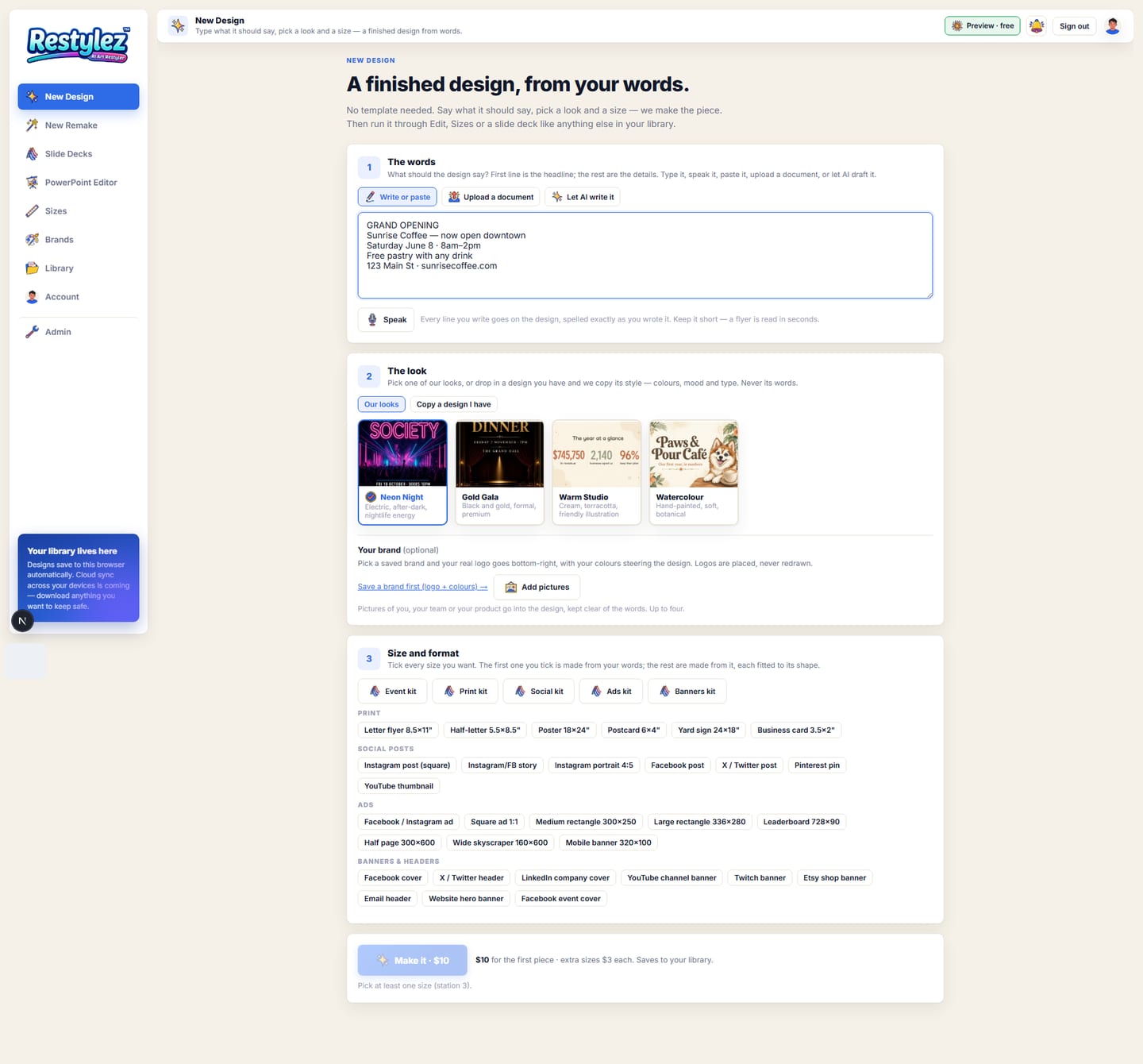
Station 1 is the words. The first line is the headline; the rest are the details. Type, paste, press Speak, upload a document (PDF, Word, PowerPoint or text file) or let AI draft it from one sentence. Every line goes on the design, spelled exactly as you wrote it.
The whole screen · click to open full size 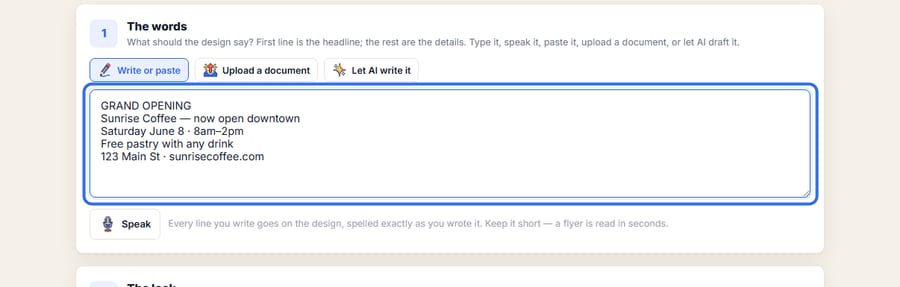
Close-up — the part to look at - 2Pick the look
Station 2 is the look. Choose one of the house looks — Neon Night, Gold Gala, Warm Studio or Watercolour — or switch to “Copy a design I have” and drop in a design whose style you want. Only its colours, mood and type come across, never its words.
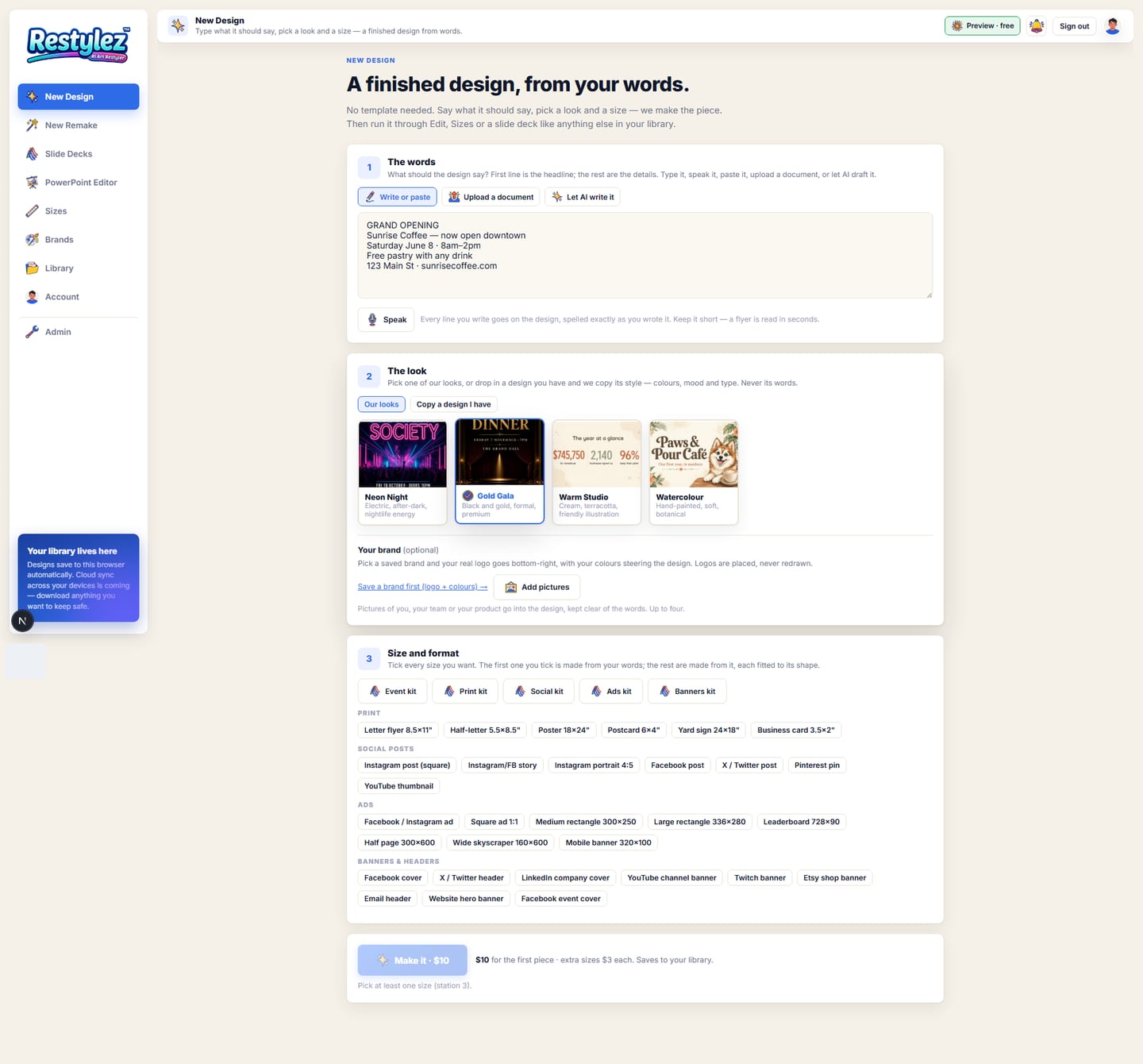
The whole screen · click to open full size 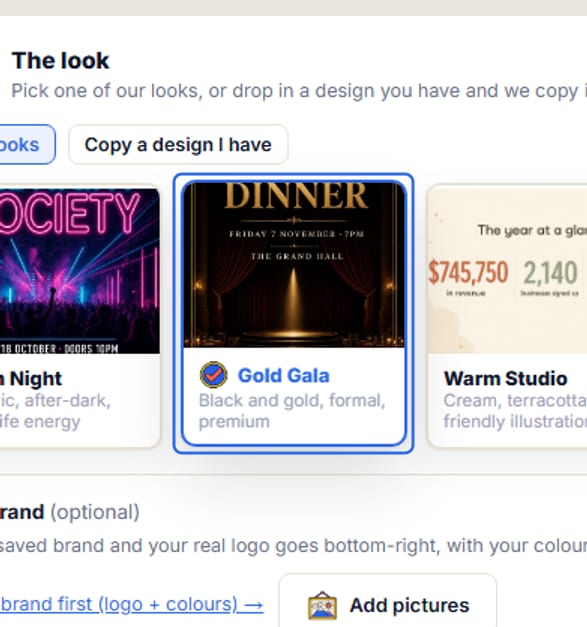
Close-up — the part to look at - 3Tick the sizes
Station 3 is size and format. Tick every size you want, or press a kit to tick a set. The first one you tick is made from your words; the rest are made from it, each fitted to its shape. Small sizes get a “what to keep” note you can change.
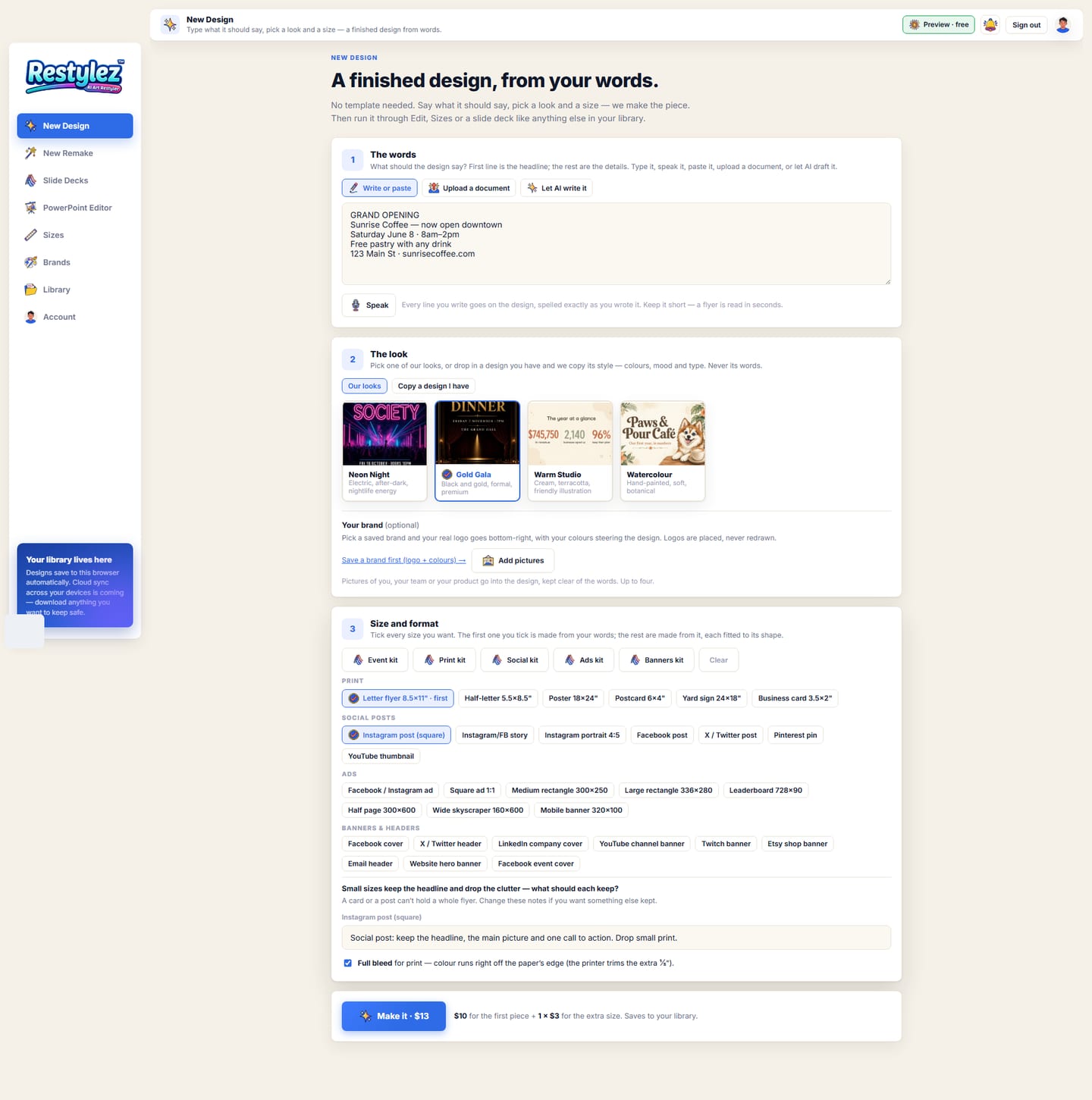
The whole screen · click to open full size 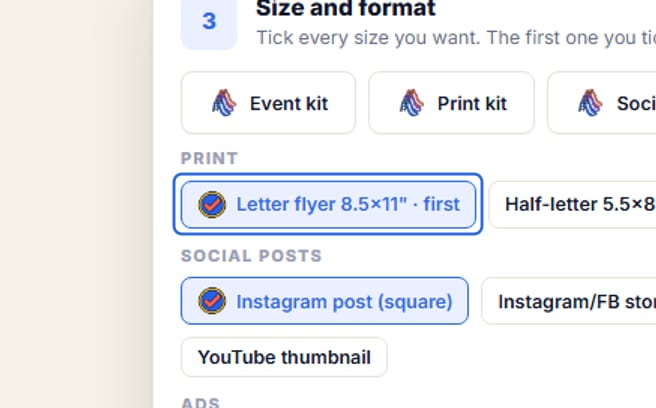
Close-up — the part to look at - 4Press “Make it”
The button shows the total: $10 for the first piece plus $3 for each extra size. It takes about a minute for the first piece and one to three minutes per extra size. The result saves to your Library.
The whole screen · click to open full size 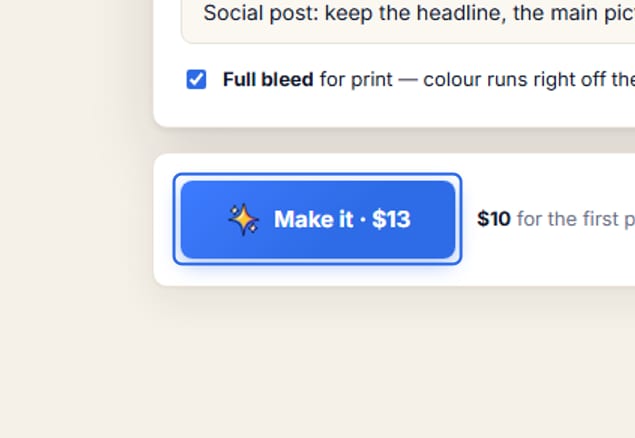
Close-up — the part to look at

- Keep it short — a flyer is read in seconds. Five or six lines is plenty.
- Anything the AI writer doesn’t know (a date, a price) comes back as [a blank] for you to fill in — it never makes facts up.
- Pick a saved brand under “Your brand” and your real logo goes bottom-right, with your colours steering the design. Save one first on the Brands page.
- Add up to four pictures of you, your team or your product — they go into the design, kept clear of the words.
- If you copy a design you have, you must tick “This design is mine to use” — required, every time.
- When you’re done, the finished piece works like any other design in your Library: Edit, Sizes and Download all apply.
The messages the page can show, and what to do.
- “Type what the design should say (station 1).”
- The words box is empty — the Make button stays grey until there is something to put on the design.
- “Add the design whose look you want (station 2).”
- You chose “Copy a design I have” but haven’t dropped one in. Add it, or switch back to “Our looks”.
- “Tick “this design is mine” (station 2).”
- The ownership box under your own look isn’t ticked.
- “Pick at least one size (station 3).”
- Nothing is ticked. Tick a size or press a kit.
- “Could not read that file — try again.”
- The document couldn’t be opened. Try a PDF, Word (.docx), PowerPoint (.pptx) or plain text file, or paste the words in by hand.
- “The design failed — try again in a moment.”
- The maker hit a snag. Press “Make it” again — nothing was charged.
- “These sizes couldn’t be made (try them again on the Sizes page): …”
- The first piece is done and saved; only some extra sizes failed. Open it on the Sizes page and tick those sizes again.
- “You’re out of credits. Add some to keep going.”
- Your balance can’t cover this piece. Add credits on the Account page — your work carries on from where you left off. Nothing was charged.