 Preview · free
 All guides
Logo Maker — an original logo from words
For a business that doesn’t have a logo yet. (Already have one? Save it on the Brands page — it is never redrawn.)
Open Logo Maker- 1Fill in the brief
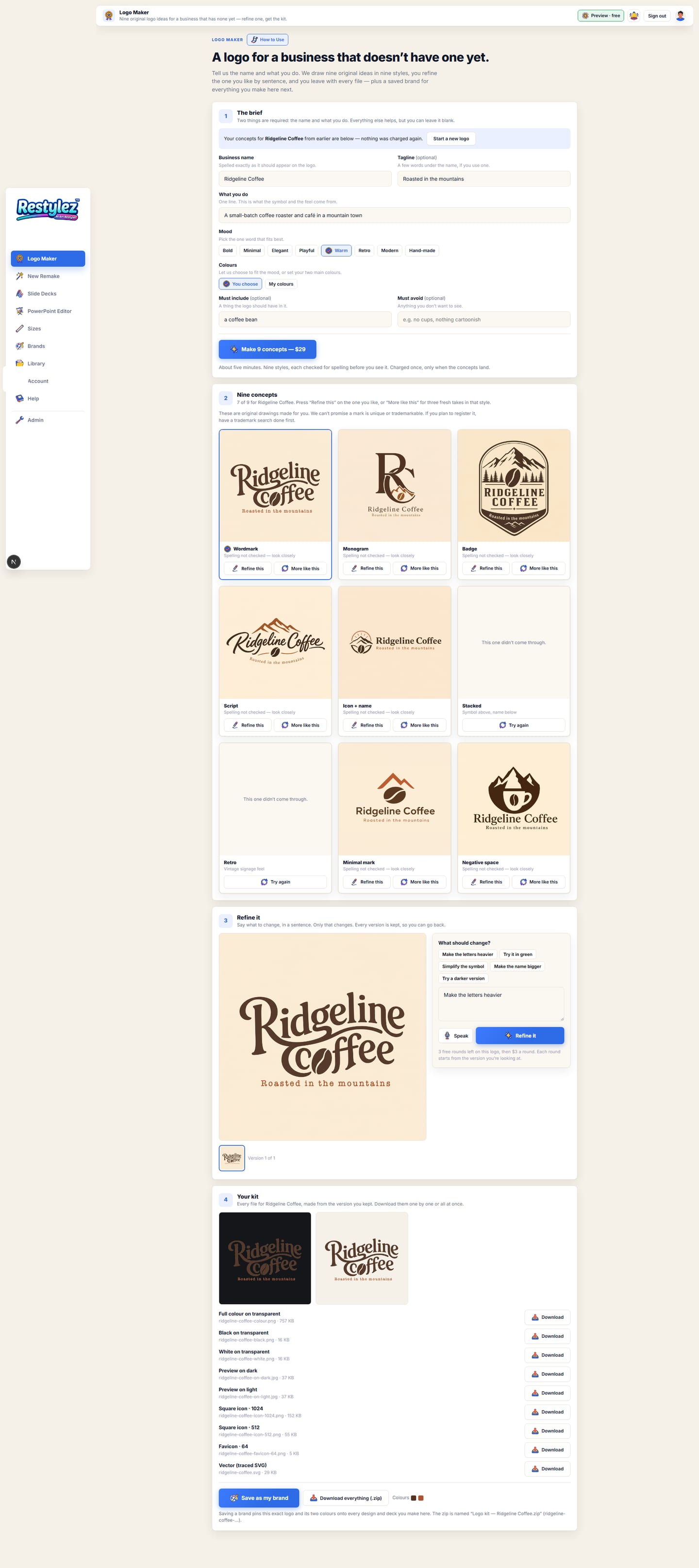
Station 1. The business name (spelled exactly as it should appear) and one line on what you do are required. Add a tagline, pick a mood, set your two colours or leave “You choose”, and say anything the logo must include or avoid.
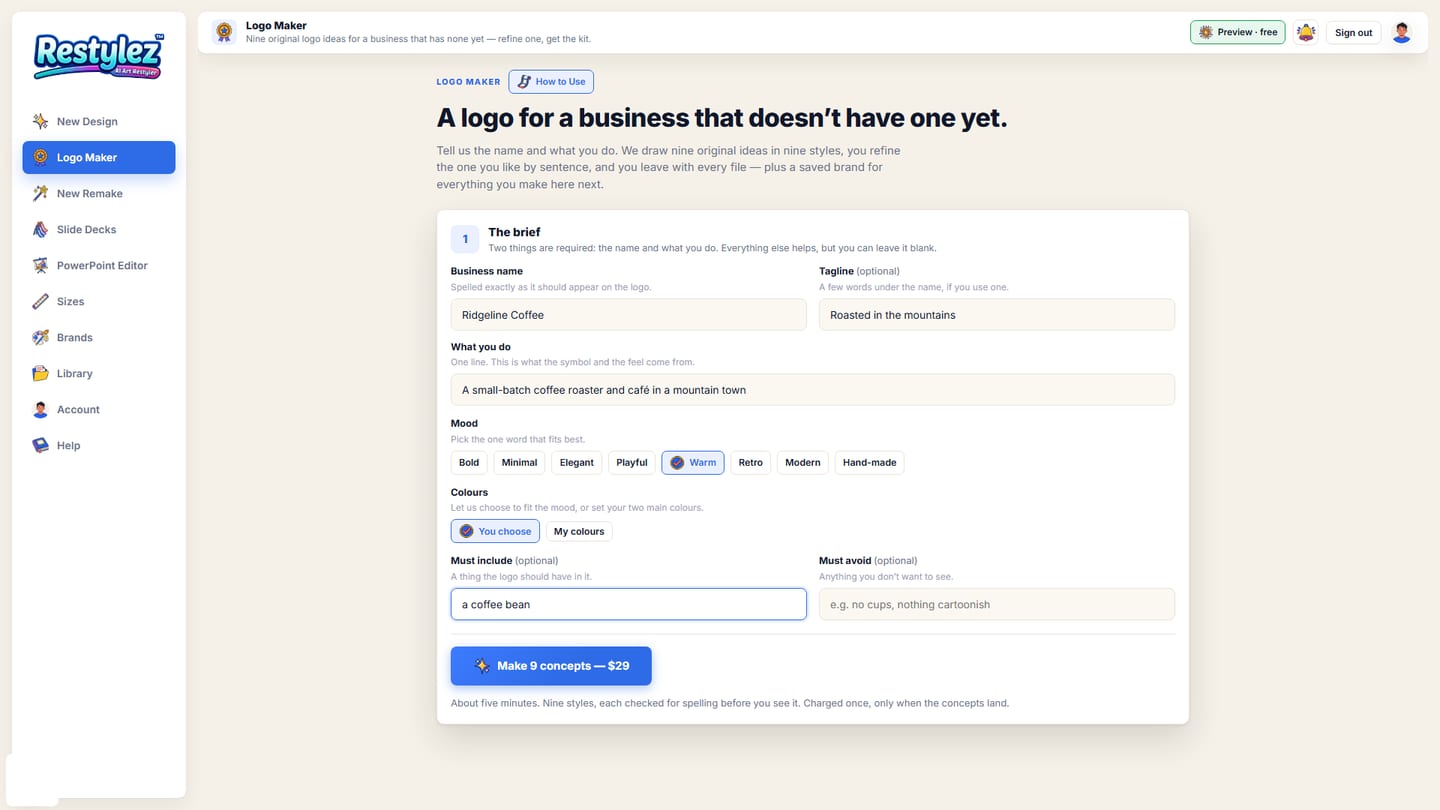
The whole screen · click to open full size 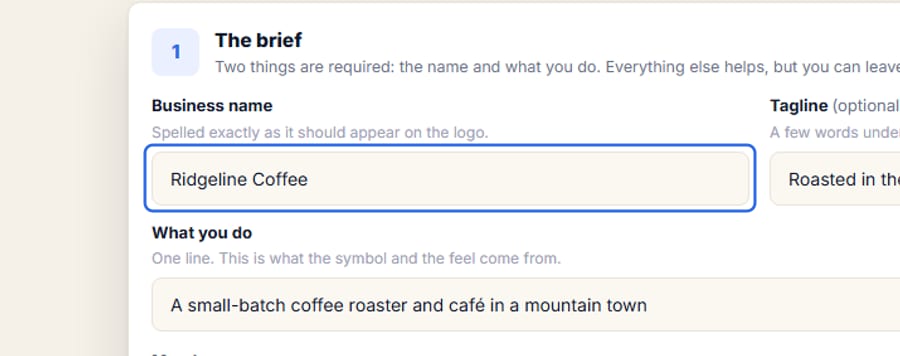
Close-up — the part to look at - 2Press “Make 9 concepts”
The button shows the price. It takes about five minutes: nine styles — wordmark, monogram, badge, script, icon + name, stacked, retro, minimal mark and negative space — each read back by a checker to make sure the name is spelled right before you see it.
The whole screen · click to open full size 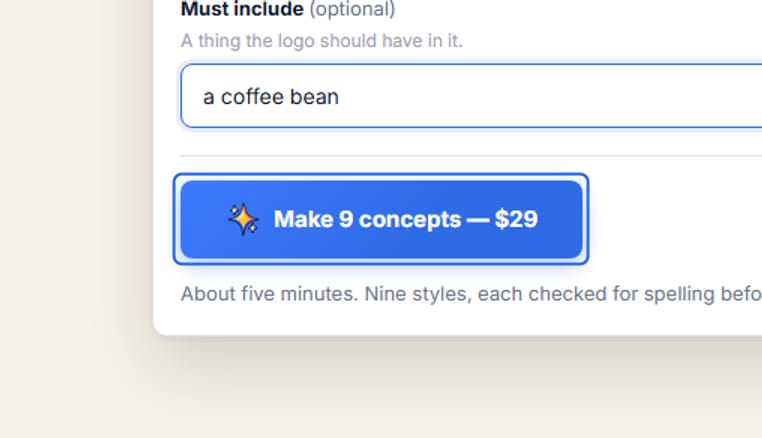
Close-up — the part to look at - 3Look over the nine
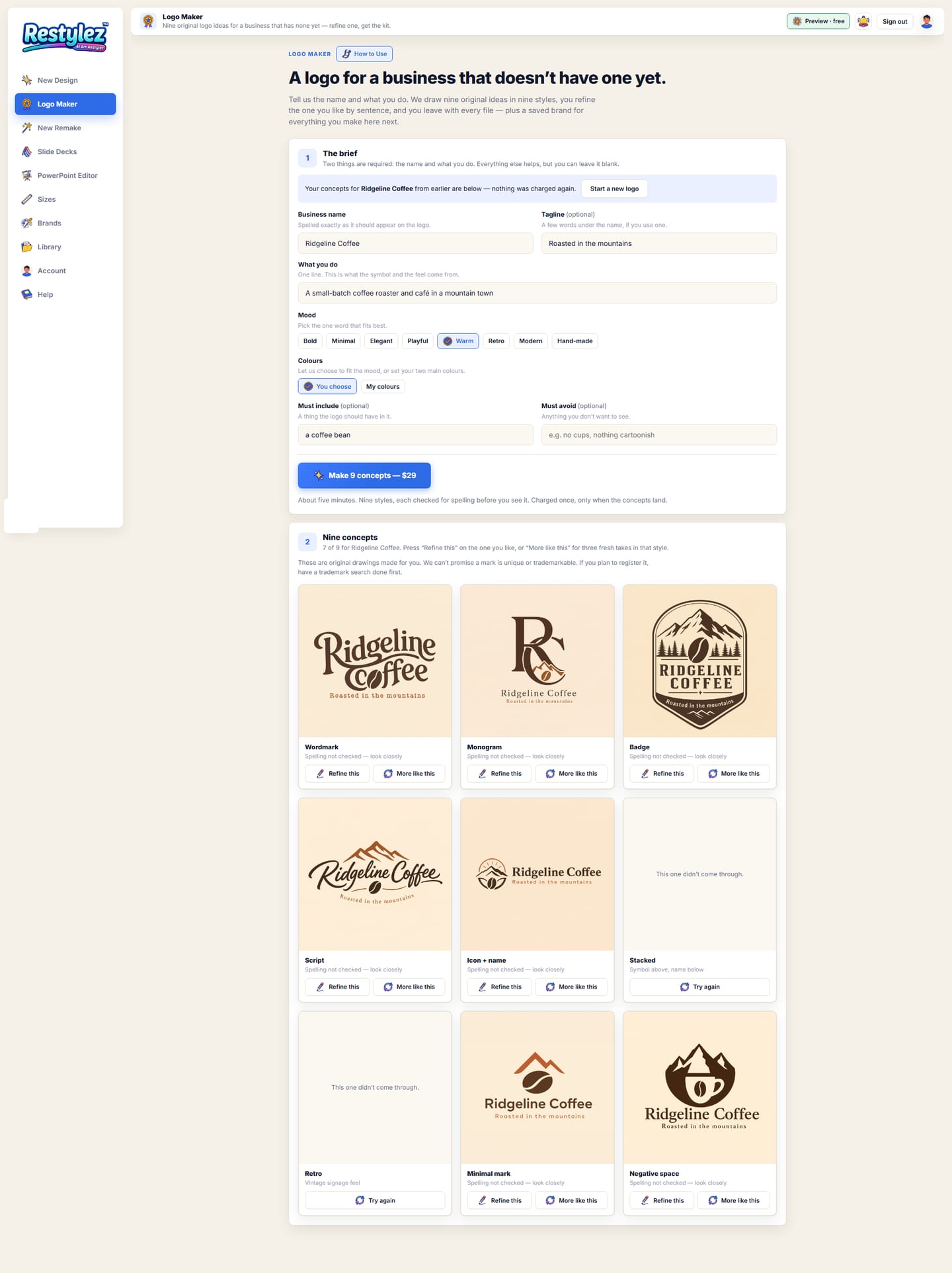
Station 2 is the 3×3 grid, with the style name under each concept. A concept that failed the spelling check twice is not shown; press “Try again” on it. “More like this” draws three fresh takes in that style.
The whole screen · click to open full size 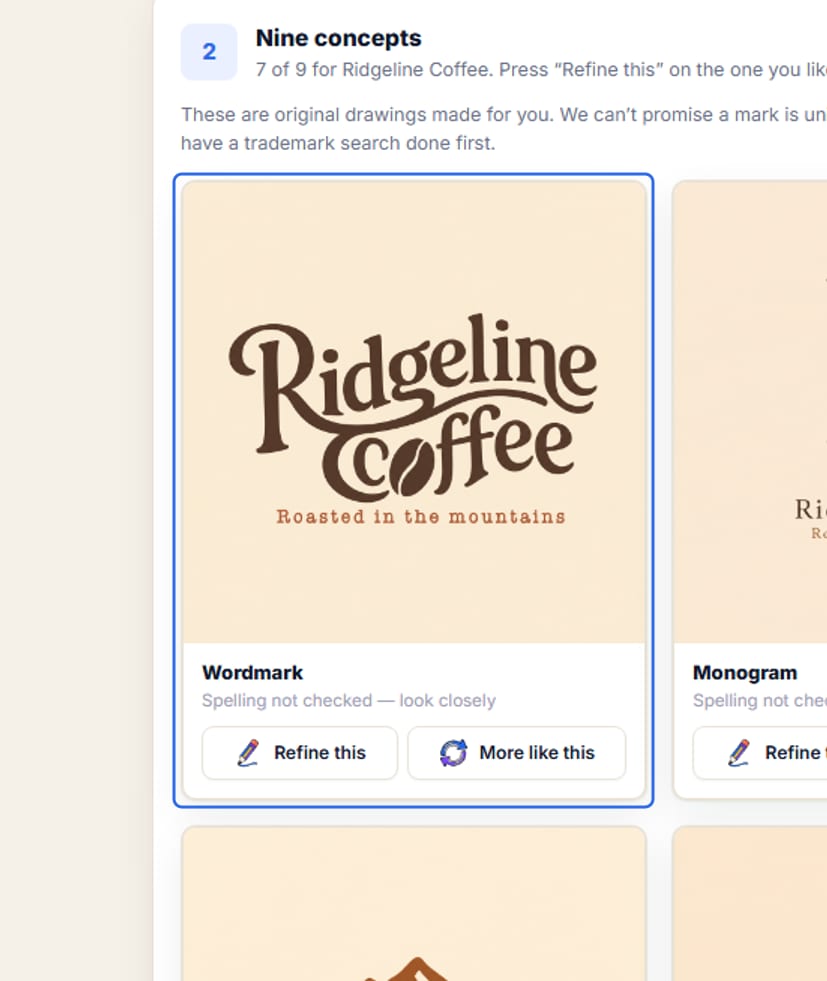
Close-up — the part to look at - 4Refine the one you like
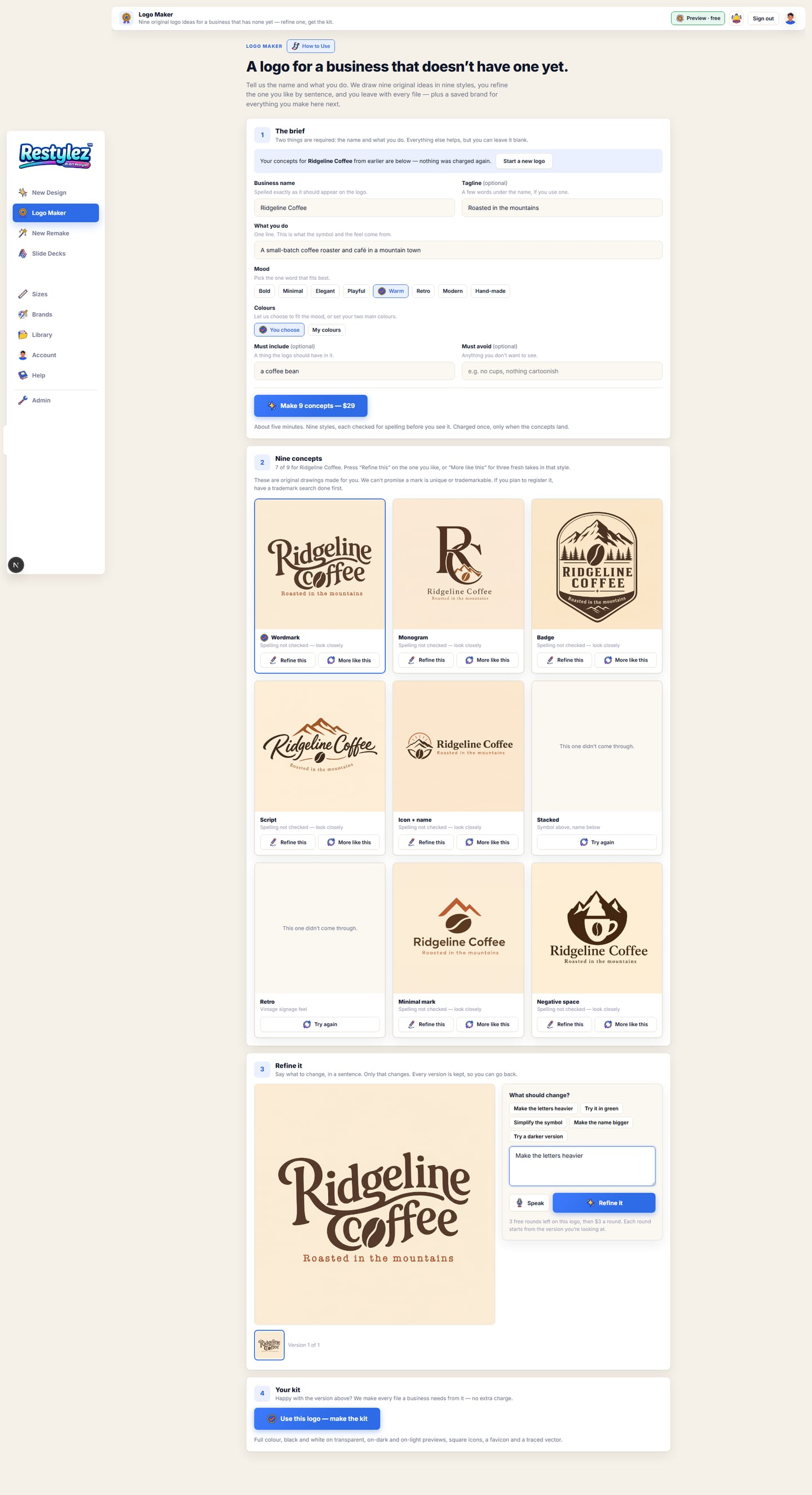
Press “Refine this”. Station 3 opens with the concept big on the left and a sentence box on the right — type or press Speak: “make the letters heavier”, “try it in green”, “add a coffee bean”. Every version is kept as a thumbnail; click one to go back to it.
The whole screen · click to open full size 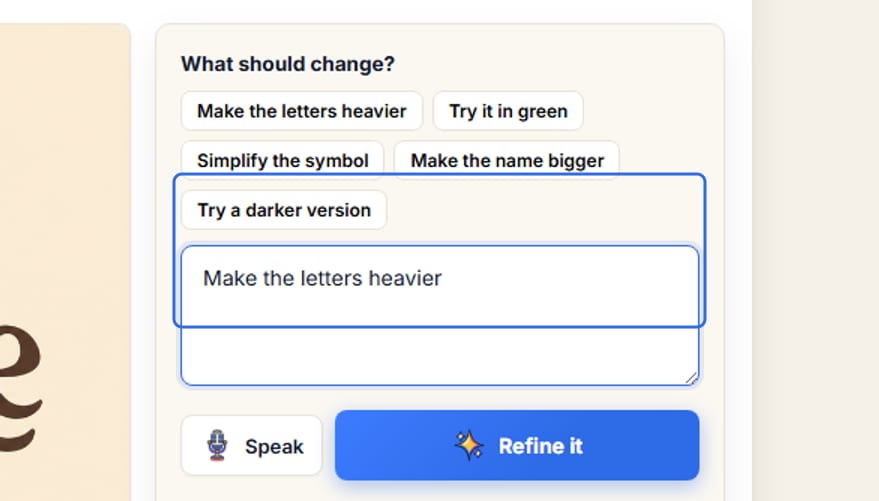
Close-up — the part to look at - 5Make the kit
Station 4. Press “Use this logo — make the kit” and every file is made from the version you kept: full colour, black and white on transparent, on-dark and on-light previews, square icons at 1024 and 512, a 64px favicon and a traced SVG. Download them one by one or as one zip.
The whole screen · click to open full size 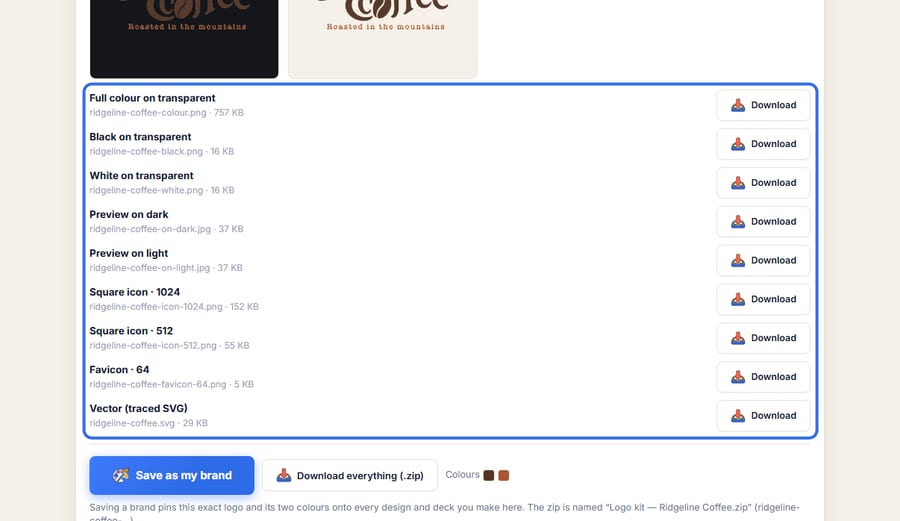
Close-up — the part to look at - 6Save it as your brand
Press “Save as my brand” and the logo and its two main colours become a Brand. From then on New Design and Slide Decks place this exact file on every piece — it is never redrawn.
The whole screen · click to open full size 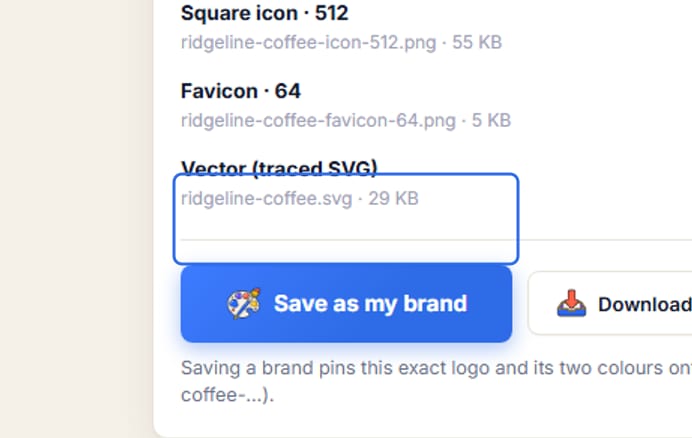
Close-up — the part to look at
- Nine concepts cost $29, charged once when they land. The first three refine or “more like this” rounds are free; after that a round costs $3. The kit is free.
- These are original drawings made for you. We can’t promise a mark is unique or trademarkable — if you plan to register it, have a trademark search done first.
- Names of well-known brands are refused. If your business shares a famous name, add what you do or where you are.
- One change per round gives the cleanest result: “make the name bigger”, then “try a darker green”.
- The kit and the concepts save to your Library on this device. A set of concepts survives a reload — open Logo Maker again and it is waiting.
- The SVG is a traced outline of the black version. For a few concepts the tracer can’t get a clean line; the page says so, and the PNGs are full size.
The messages the page can show, and what to do.
- “Type the business name. / Say what the business does — one line is plenty.”
- The two required lines in the brief are empty. The button stays grey until both are in.
- ““…” looks like a well-known brand, and we only make logos for businesses that don’t have one yet.”
- The name matches a famous brand. If it is genuinely yours, add a word — what you do or your town — and try again.
- “Didn’t spell the name right, twice — so we didn’t show it.”
- That style failed the spelling check on both tries. Press “Try again” on the card; a third go usually lands. Long or unusual names are the hardest.
- “This one didn’t come through.”
- The maker hit a snag on that style. Press “Try again” — a concept that fails is never charged.
- “None of the concepts came through — nothing was charged.”
- The whole run failed, usually a busy image service. Wait a minute and press the button again.
- “That change didn’t take — say it a different way and try again.”
- The instruction was too vague. Name the thing and the change: “make the bean bigger”, “put the name under the symbol”.
- “Vector not available for this one.”
- The tracer couldn’t get a clean outline from this concept (fine detail or soft edges). The PNGs are full size and print well; a designer can redraw the vector from them.
- “Could not reach the maker — try again.”
- Your connection dropped for a moment. Check you’re online and press the button again. A job that fails is never charged.
- “You’re out of credits. Add some to keep going.”
- Your balance can’t cover this piece. Add credits on the Account page — your work carries on from where you left off. Nothing was charged.