
 Preview · free

 All guides
Looks — pick a style, we do the design
For anyone who knows the feel they want — bold, elegant, neon, handmade — but doesn’t want to design it.
Open LooksThe 90-second tour shows the whole app; the steps below walk through the Looks library in full.
- 1Browse, and narrow it down
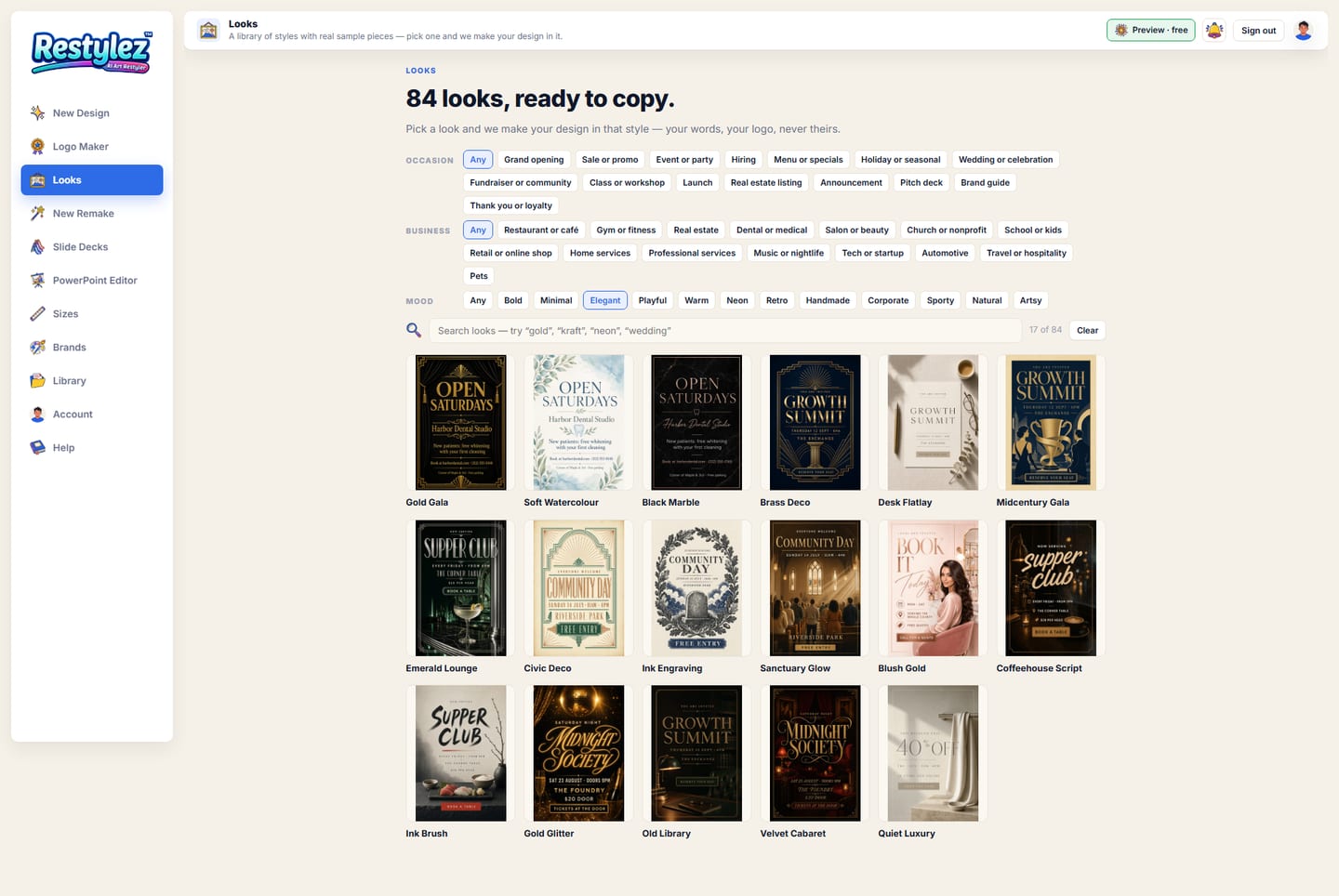
The Looks page shows every look as a thumbnail with its name underneath — rest the mouse on one and it flips through the sample pieces it has. Three rows of pills narrow the list: Occasion (grand opening, hiring, wedding…), Business (café, gym, real estate…) and Mood (bold, elegant, neon…). Press a pill to tick it, press it again to clear it; “Any” shows everything.
The whole screen · click to open full size 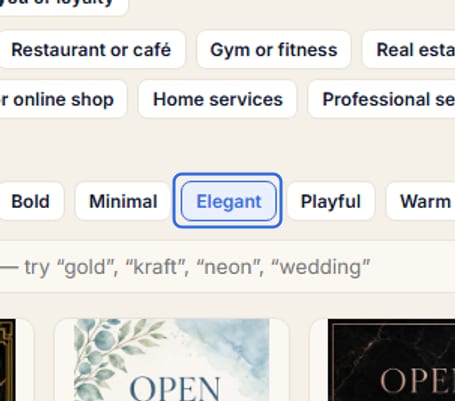
Close-up — the part to look at - 2Search in plain words
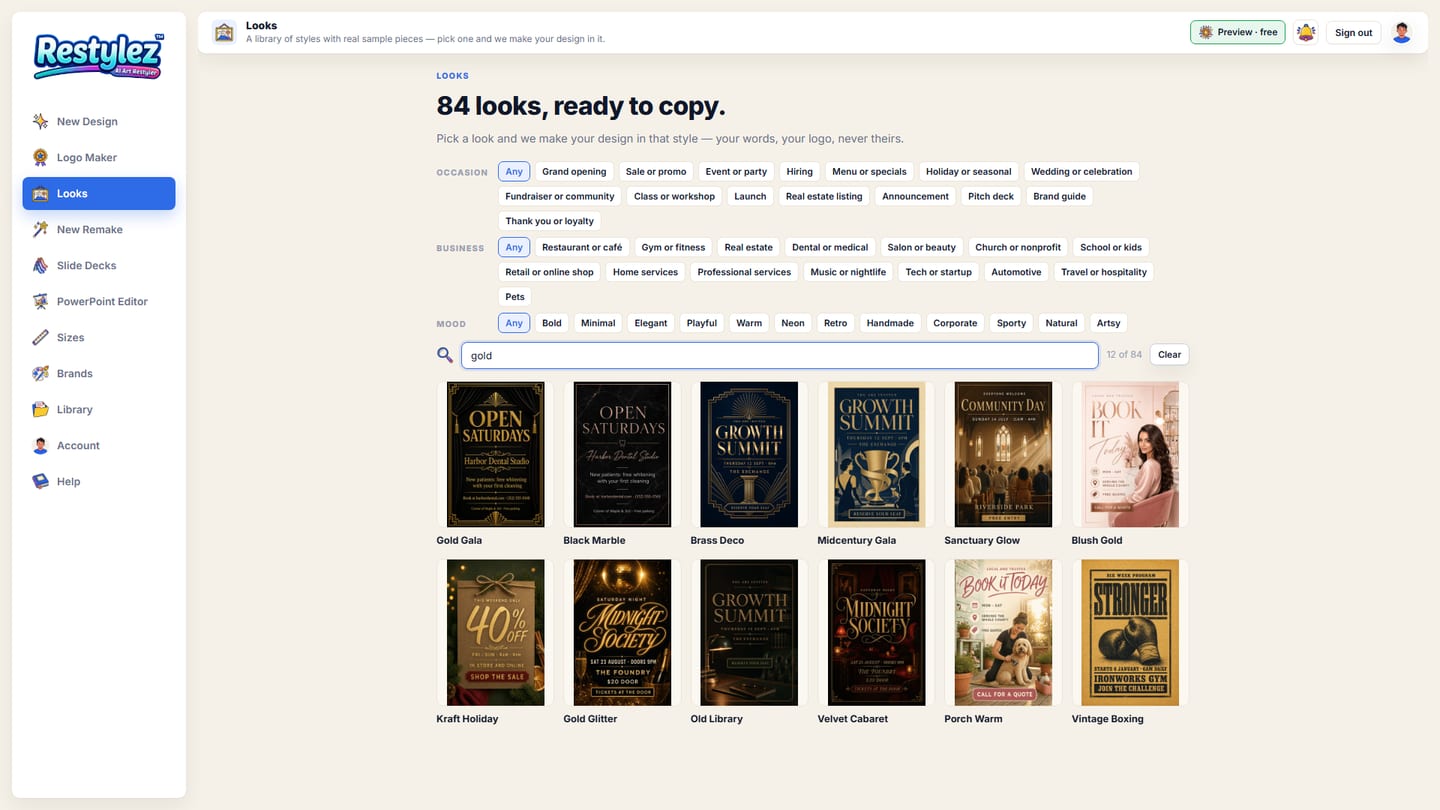
Type into the search box — “gold”, “kraft”, “neon”, “wedding” — and the grid narrows as you type. The count on the right says how many looks match. Clear wipes the search and the pills in one press.
The whole screen · click to open full size 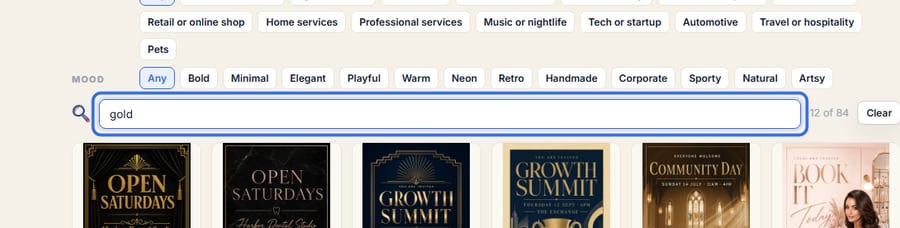
Close-up — the part to look at - 3Open a look
Click a thumbnail to open the look’s own page: every sample piece it has, large — flyer, business card, square post and the deck slides — with its tags underneath so you can see what it suits.
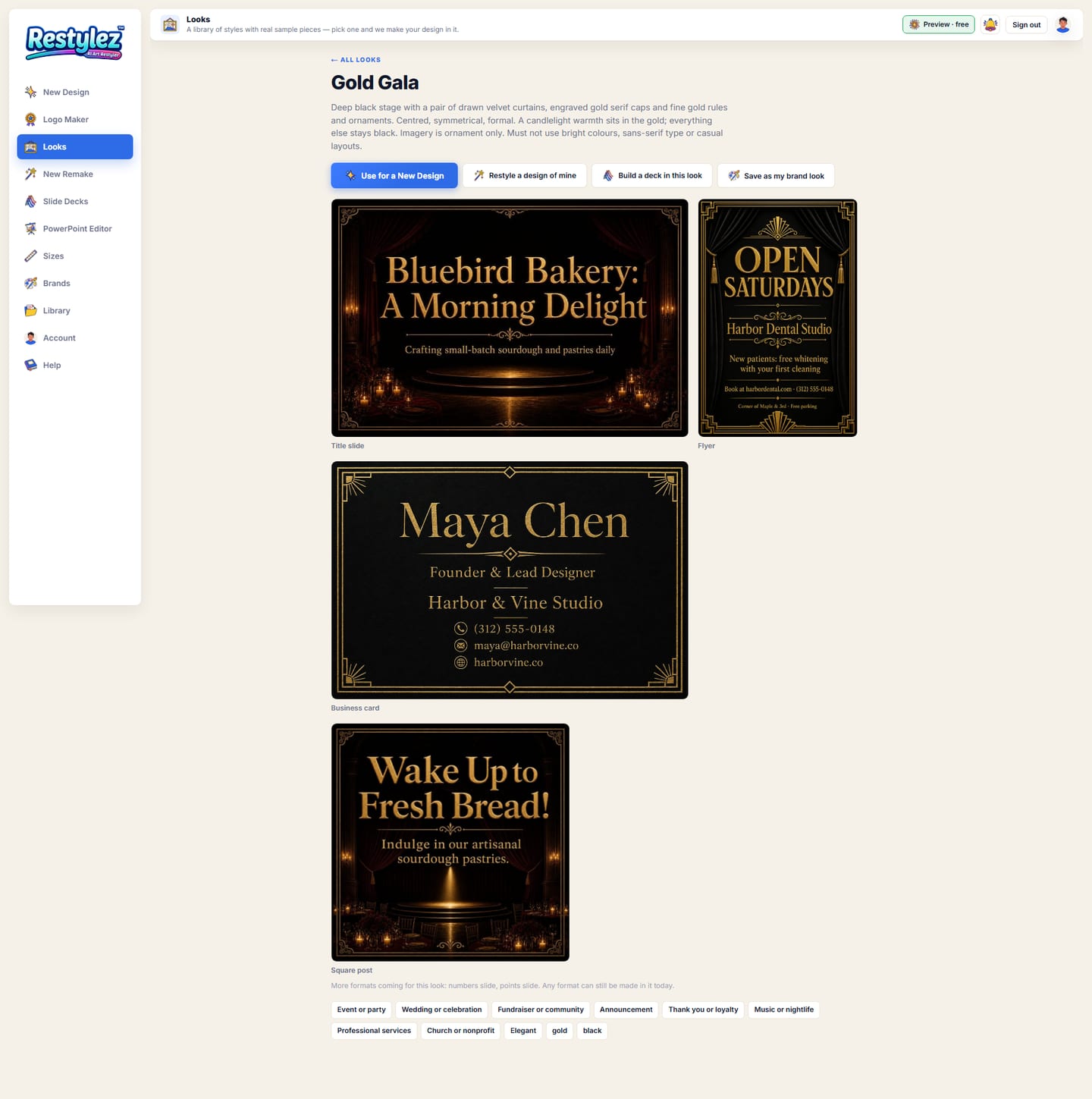
The whole screen · click to open full size 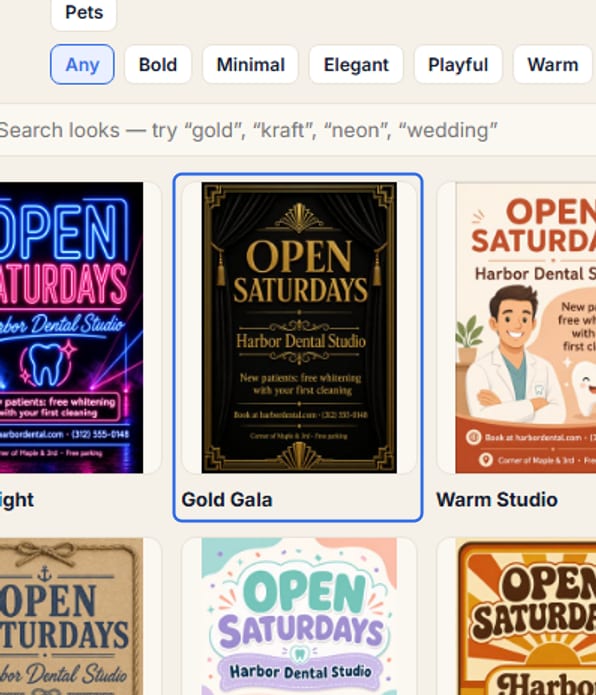
Close-up — the part to look at - 4Use it for a New Design
The row of buttons at the top does the work. “Use for a New Design” opens New Design with this look already picked at station 2 — type your words, tick a size, press Make. Inside New Design, “Change look” opens the same library as a pop-up; click any thumbnail to swap.
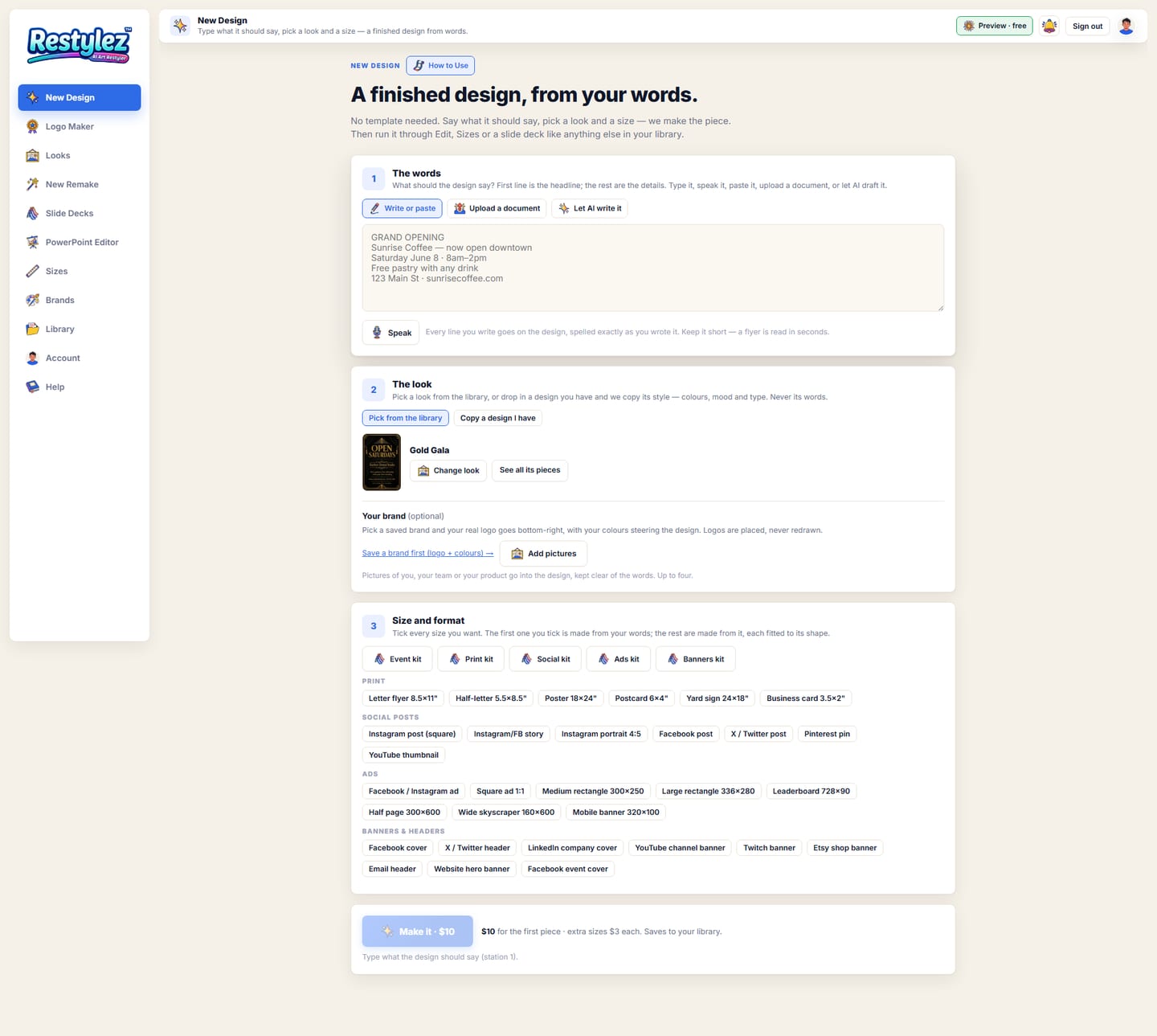
The whole screen · click to open full size 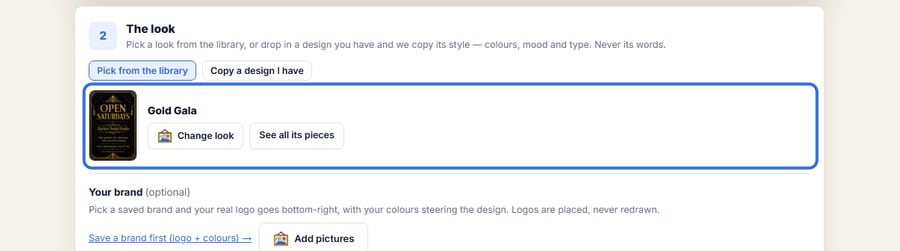
Close-up — the part to look at - 5Restyle a design of mine, or build a deck in it
“Restyle a design of mine” opens New Remake in “Same content, different style” mode with this look ready: add your own design and its words stay while its style changes. “Build a deck in this look” opens Slide Decks with the look ready — bring your document or topic, review the plan, and every slide wears this style.
The whole screen · click to open full size 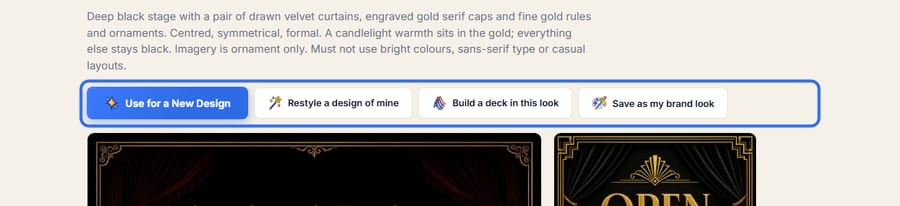
Close-up — the part to look at - 6Save it as my brand look
“Save as my brand look” writes the look onto a saved brand — if you have one brand it saves straight away; with several it asks which; with none it opens the Brands page with the look ready in the “Brand look” field. From then on, picking that brand in New Design picks this look too.
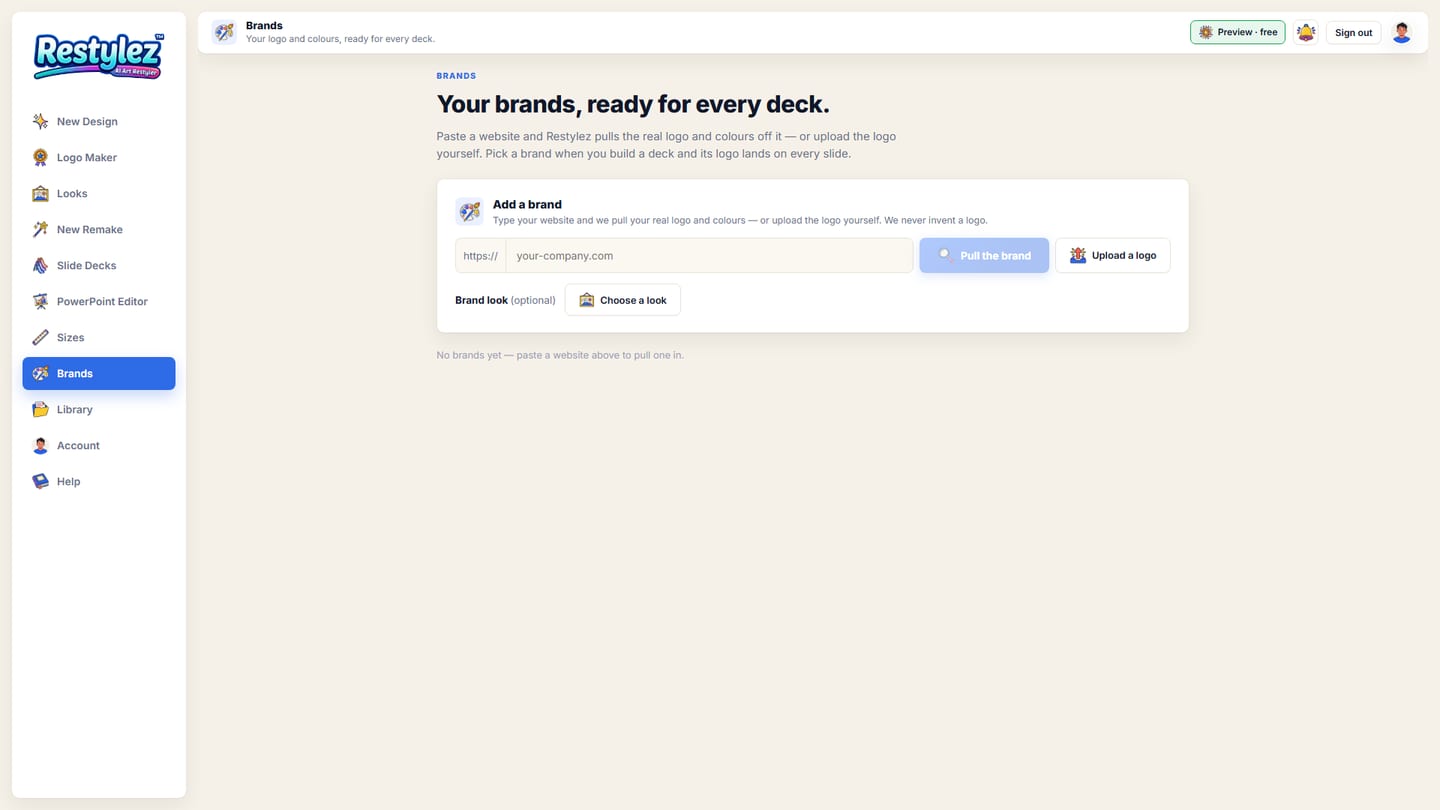
The whole screen · click to open full size 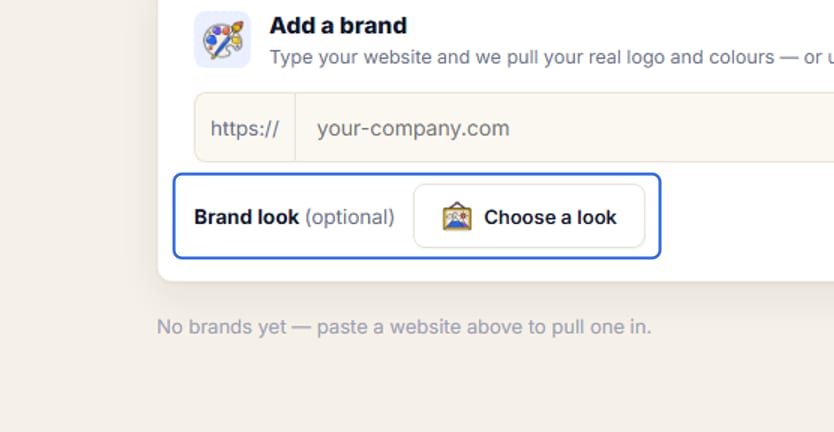
Close-up — the part to look at

- “Your words, your logo, never theirs” means a look lends only its style — colours, mood, type and layout. The sample pieces’ words never come across; your real logo is placed as a file, never redrawn.
- House looks need no ownership box — they are ours to lend. The “mine to use” tick appears only when you bring a design of your own to copy or to restyle.
- A look that says “More formats coming” simply has fewer sample pictures so far. Any format can still be made in it today — the look itself is complete.
- A brand with a brand look preselects it: choose that brand under “Your brand” in New Design and the look switches to match, with a note saying it is that brand’s look.
- Looks are free to browse, signed in or out. Using one costs what the piece costs — a New Design, a remake or a deck — nothing extra for the look.
- Filters can be shared: the page address carries them, so a link to /looks?mood=elegant-luxury opens the library already narrowed.

The messages the page can show, and what to do.
- “Nothing matches all of that yet — clear a filter or try a different word.”
- The pills and the search together rule out every look. Press Clear, or untick one pill, and the grid comes back.
- “Sign in to use this look — it takes a moment and your first piece is free.”
- You’re browsing signed out. Any of the four buttons takes you to sign-in and brings you straight back to this look.
- “Could not load that look — try another.”
- The look’s sample picture didn’t download when you picked it in New Remake or Slide Decks. Check you’re online and pick it again, or choose a different look.
- “Pick a look (station 2).”
- In New Design the look was removed. Press “Choose a look” at station 2 and click one.
- “No brands yet — paste a website above to pull one in.”
- You pressed “Save as my brand look” with no brand saved, so the Brands page opened with the look ready. Paste your website or upload your logo, add the name, and save — the look is kept on it.